You can enter individual values for tolerance and roughness fields for a specific GCD. You can edit these tolerances in one of two ways:
-
From the Tolerance Editor ( Don't confuse with the Tolerance Policy Editor).
-
From the editable tolerance and roughness fields in the Geometric Cost Drivers pane.
Enter tolerance and roughness values using the Tolerance Editor
-
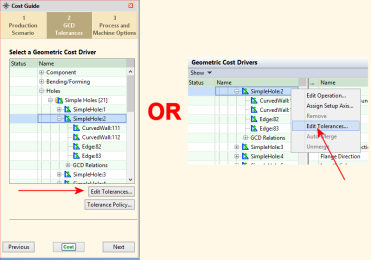
There are two ways to open the Tolerance Editor. Select a GCD either:
-
From the tab of the Cost Guide, click the Edit Tolerances button.
-
From the Geometric Cost select Edit Tolerances from the right-click context menu.
-
-
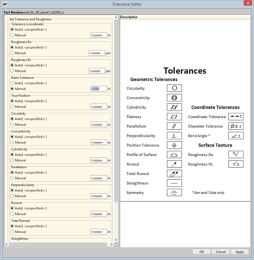
The Tolerance Editor displays, showing a list of tolerances that apply to that type of GCD (see the table in the section How tolerances map to GCDs for more information).
-
For the tolerance value(s) that you wish to set, Manual, and enter the value in the associated field.
-
Click OK when done.


Enter tolerance and roughness values using the Geometric Cost Drivers pane
-
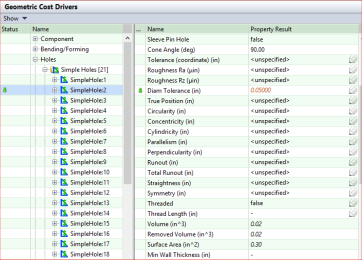
Go to the Geometric Cost Drivers pane and navigate to the GCD to which you wish to add tolerance information.
-
The Name column lists the tolerances that apply to this GCD (along with other values). See the table in the section How tolerances map to GCDs for more information.
-
The pencil icon indicates fields that can be edited.
-
-
Double-click the field in the Property Result column enter the value you wish to apply.
Note that override values are displayed in red italic and a green “User Override” icon appears in the left column.
-
To remove an existing tolerance value, you can double-click and delete the entered value, or right-click the value and select Return to Auto-Select from the context menu to re-display unspecified in the field.
-
Press Enter, Tab, or click on another property.
